
Showing posts with label phone. Show all posts
Showing posts with label phone. Show all posts
Thursday, April 27, 2017
How to Increase your Android phone a huge speed boost !! just like Apple speed up iOS 7 1
How to Increase your Android phone a huge speed boost !! just like Apple speed up iOS 7 1
Overview Increase Android phone Speed
Today, I am talking about how to increase android phone like a Apple phone .I am really Enjoy the Apple Phone speed on my Android phone Apple released its eagerly anticipated iOS 7.1 update last week and while the new software added a bunch of great new features and cleaned up a few annoying bugs, there is one thing in particular that stands out as the best thing about iOS 7.1: the speed improvements. Apple’s new iOS 7.1 software is incredibly fast on iPhones and iPads, and the difference completely changes the user experience for the better. But why should iPhone users have all the fun?

Three Settings of Android
With a few simple adjustments to three settings, you can enjoy the same great speed improvements on your Android smartphone or tablet.
One of the many great things about Android is its flexibility. Google’s mobile software is open to all kinds of third-party tweaks and enhancements, but it also has some built-in features that save
owners can take advantage of to change the user experience. One such feature allows Android device users to dramatically speed up the transition animations that display when they switch apps and when windows open and close.
The tweaks are available within the settings of all recent Android phones in a section called “Developer options.”
This section might be hidden on some phones, but it’s very easy to access. On many phones, you just have to open a certain page in the settings and tap a button seven times. Use Google to figure out how to enable Developer options on your phone if it’s currently hidden (for example, search “enable developer options HTC One”).

Once you have access to Developer options, simply scroll until you find the following three settings, which may be located on the main screen or within an “Advanced” subsection:
- Window animation scale
- Transition animation scale
- Animator animation scale
Tapping each of the three aforementioned settings will reveal that it’s set to “1x” by default. If you want to speed up your phone or tablet dramatically, simply change each of those three settings to “.5x” — that’s it.
Just as iOS 7.1 completely changed the feel of the iPhone user experience by speeding up transitions, this will do the same for Android devices. Adjusting these settings also shouldn’t really have any impact on battery life, though if you’re using an older phone with a slower processor you may see some choppiness.
Available link for download

Monday, April 24, 2017
How to organize applications on samsung galaxy phone
How to organize applications on samsung galaxy phone
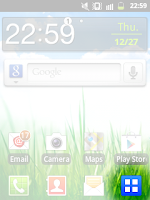
To organize the applications on your phone.
First, tap on the application icon


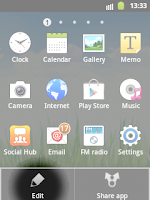
tap Edit
After that, you will see that the apps look like these.
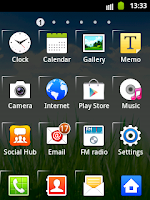
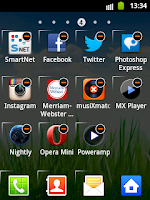
As you can see, some applications have this
 icon at the top right corner.This mean that you can delete that app. However the default applications are those that cant be deleted.
To organize the positions of the applications, tap and hold the app until you felt that the phone vibrate, signaling that you can now move the application at any page/location or position you want.
Available link for download
Saturday, April 8, 2017
How to book FireFlyz flight by mobile phone
How to book FireFlyz flight by mobile phone


The easiest way to make reservations is through the Firefly Online booking . Now you can make reservations through your mobile. But, How do I make a reservation through mobile? Firefly customers need only register their phones on line at Fireflys website, download Firefly Mobile Application, Mobile Application and launched the Firefly phone and began to book them.
Internet flight booking process is as easy as booking a little more input data is required.
- Launch Firefly Mobile Application in your mobile phone.
- Select Book Flights from the Main Menu.
- Select your trip itinerary.
- Verify the travellers information.
- Confirm the price.
- Enter your credit card CVV number and PIN code. The system will display the Booking PNR (confirmation code).
To register and download the new application visit: http://www.fireflyz.com.my/mobile
fact1
Firefly recently announced the introduction of jet aircraft operations with a new fleet of Boeing 737-800 which will operate from the Main Terminal Building Kuala Lumpur International Airport (KLIA) from January 2011.
fact2
Firefly became the first company in Malaysia and the two airlines in the world who have websites on the Foursquare, location-based social network that allows travelers to find useful travel tips in near the airport or destination. For more interesting facts and tips, visit http://foursquare.com/flyfirefly to meet up with friends, find new places and to open gifts when you travel. Firefly are also connecting with people through Facebook, Twitter & Blog.
Available link for download
Thursday, April 6, 2017
How to Find Your Lost Phone F Secure Anti Theft
How to Find Your Lost Phone F Secure Anti Theft
Available link for download
Sunday, February 26, 2017
How to get a master code for your Nokia phone
How to get a master code for your Nokia phone
Hello reader, do you know you can calculate and obtain your phones master unlock code?
Well, lets let the cat out of the bag.
Prerequisites:
Obtain the SERIAL Number of the mobile phone you are using. To do this on your phones main screen press *#06#. Your serial number will display, copy it out and visit www.nfader.su
Type in the serial number you copied in the require field and click on calculate and your master code will be generated. Thats all!

Available link for download
Tuesday, February 21, 2017
How Is Your New Phone Treating You
How Is Your New Phone Treating You
Its the time of the year when the new
Android phones — like the HTC One M9 or
the Samsung Galaxy S6 —youve seen the
tech press fawn over have made their way
onto store shelves and users hands. That
means its a fun time for most everyone
involved, with all the setting up of a new
device and trying new features. New
hardware and new software brings a bunch
of things Android fans seem to love to play
with. Im guilty, as are many of you. Its fun.
No need to deny it, youre among friends
here.
Of course, its also the time when we read
about issues, bugs, horribly-broken-zomg-
what-is-wrong problems from the folks that
are having them. Usually, this is a small
number of people who are understandably
very vocal about problems with their very
expensive new gadget. Nothings perfect and
problems are real — even if youre not seeing
any.
Heres your chance to say just how your
new Android is treating you. Take the poll,
jump into the comments to hash it all out.
And remember, if you are having issues, the
Android forums are a great place to find
answers for just about anything!
Source : Android Central

Available link for download
Monday, January 9, 2017
How to Create a Folder on Start Screen of Your Windows Phone
How to Create a Folder on Start Screen of Your Windows Phone
Windows Phones are being loved by many users due to its UI magazine style. However, it is not much popular comparative to Android or iOS. There are many customizations and adding which you can done with your Windows Phone.
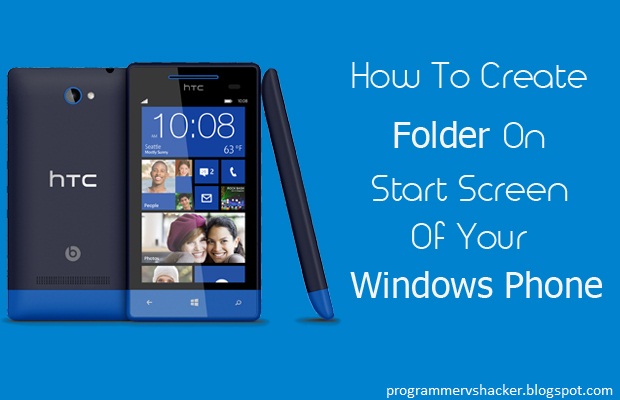
Therefore, today I am going to share an article in which you will learn one of the adding on your Windows Phone that, “How to Create a Folder on Start Screen of your Windows Phone?” Most of the people want to create it, since they want to keep their important documents on the start screen in order to approach them swiftly.
With the help of this article, you can set your Start Screen according to your favorite and important documents in order to approach them easily and keep them in front of your eyes.
We have mentioned each and everything regarding this article. You can go through these steps and get the solution of your query that, “How to create a folder on Start Screen of your Windows Phone?”
Learn-How to Create a Folder on Start Screen
These are the simple steps which you are going to learn and understand about. You will get the solution easily without having much great troubles and confusion.
- First of all you are supposed to press and hold Tile from the Start Screen (Main Screen)
- Afterwards, the tile will pop up, now drag that pop up to you favorite position on the Start Screen, where you want to place your folder.
- Then you have to tap on Name Folder to give a name to your folder, after giving the name to your folder tap on Enter
- To add more folders, you have to follow the same steps mentioned above
- Now, you can tap on your folder to open it and can include your favorite stuffs in it
- Congratulations! You have successfully created a Folder
Conclusion
This was detailed tutorial that,”how to create a folder on Start Screen of Your Windows Phone?” I am sure that after reading this article your all queries must have removed.
However, if you still have any confusions or questions left then don’t hesitate and share your queries with us. We shall try to remove your queries as soon as possible.
Finally, if you have found this guide helpful which has guided you that, “how to create a Folder on Start Screen of Your Windows Phone?” Then do not forget to share this piece of knowledge with your friends. Your shares mean a lot to us.
Available link for download
Monday, December 12, 2016
GPGIndustries News LG X330 Phone Code Done
GPGIndustries News LG X330 Phone Code Done
| LG X330 Phone Code Done Posted: 17 Feb 2012 08:01 PM PST  |
| : JTAG-Pro Tool Aka GPGJTAG New Update V1.18!! Posted: 17 Feb 2012 02:46 AM PST  |
Available link for download
Thursday, November 17, 2016
How to delete search history on google map on your phone
How to delete search history on google map on your phone
Google maps on your mobile phone remembers every search query or the text you input at the search box. For some reasons, you wanted to clear or delete your search history on google map app on your mobile phone. To clear/delete this data follow the instruction given below:
- Go to your Settings
- Choose Applications
- Select Manage applications
- Select the All tab
- Scroll down until youve found the Maps
- Then Clear data
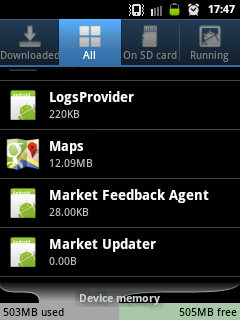
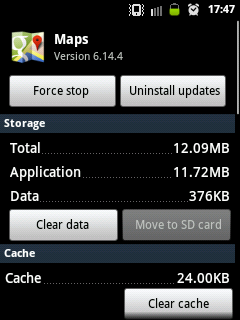
If you tap the Clear cache, the search history wont be deleted instead the map figures previously been cached or saved will be removed.
Available link for download
Tuesday, October 11, 2016
How to Make your Nokia Symbian Phone a Wi Fi Hotspot
How to Make your Nokia Symbian Phone a Wi Fi Hotspot

So do you want to use your Nokia phone as Wi-Fi Hotspot so that you can access internet on different laptops and other portable devices through your mobile phone than tune into this post because we are going to show you how you can make your Nokia Phone into a Wi-Fi Hotspot.
JoikuSpot is an awesome application for mobile phone which makes your Nokia Phone a Wi-Fi Hotspot. So that you can use its 3G connection with you laptop or other wi-fi enabled device.
JoikuSpot has three version 2012, premium and light version tats available for free. The free version comes with some limited version bundled to it but still for free you can easily convert your 3G mobile connection and stream it through Wi-Fi. Well it’s a good + free app which you will surely like so have fun and enjoy Symbian lovers.
Download JoikuSpot
Available link for download
How to Delete Extra Home Screen on Android Phone
How to Delete Extra Home Screen on Android Phone
How to delete home screen page(s)
on Android Jelly Bean Version
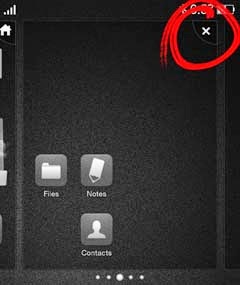
Go to your home screen
Tap and hold the screen until you feel it vibrates.
You will then see the screen looks like the image on the left.
Then tap/touch the X button at the upper right corner
How to delete home screen page(s)
on Android Gingerbread Version

On the home screen
tap/touch the MENU
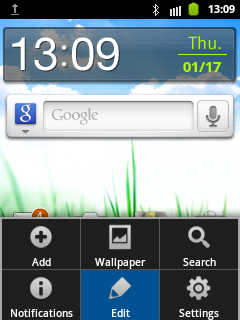
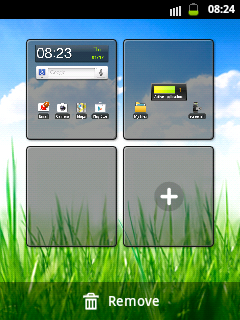
tap/touch Edit
tap/touch and hold the page that you want to delete until it vibrates.
For example I am going to remove the blank page.
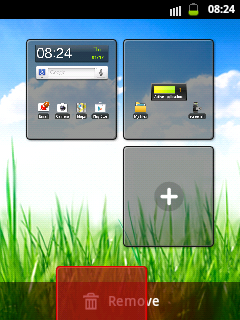
Hold that page down to the Remove area and you will see that this page turns red as it is approaching.
Available link for download
Sunday, October 2, 2016
How to Make Video Calls on WhatsApp for Android Phone
How to Make Video Calls on WhatsApp for Android Phone
Video calling feature was first released to public via Skype and it went viral, people were able to make conference voice and video calls for free and its over yet, they are still able to make all those calls but now its upto them either they want to get socialized or privatized. Yes by this I mean that in case you are using Skype you might have good links and connections on it but still you cannot beat the popularity of WhatsApp, they have a huge user base and I am sure that your single friend would be available on WhatsApp.
Available link for download
Subscribe to:
Posts (Atom)