Showing posts with label screen. Show all posts
Showing posts with label screen. Show all posts
Tuesday, April 18, 2017
How can I capture a video of my screen in fedora
How can I capture a video of my screen in fedora
Use VLC Player
How to install vlc?How to make a screencast using Vlc?
from a terminalsu -c yum -y install vlc

Select OPEN MEDIA
Select CAPTURE DEVICE tab
Change capture mode to DESKTOP
Change Options to 25 f/s
Choose CONVERT option instead of play option
In the Convert window add the destination file via the BROWSE
button then name the file TEST.MPG (VLC does require the extension so the file becomes TEST.MPG rather than just TEST)
Change the PROFILE to VIDEO - H.264 + AAC (TS)
Click the setting button and change the VIDEO CODEC options to:
BITRATE 1200kb/s
FRAME RATE 25.00 fps
Click SAVE
Choose the DEINTERLACE option
Click START
Available link for download

Monday, January 9, 2017
How to Create a Folder on Start Screen of Your Windows Phone
How to Create a Folder on Start Screen of Your Windows Phone
Windows Phones are being loved by many users due to its UI magazine style. However, it is not much popular comparative to Android or iOS. There are many customizations and adding which you can done with your Windows Phone.
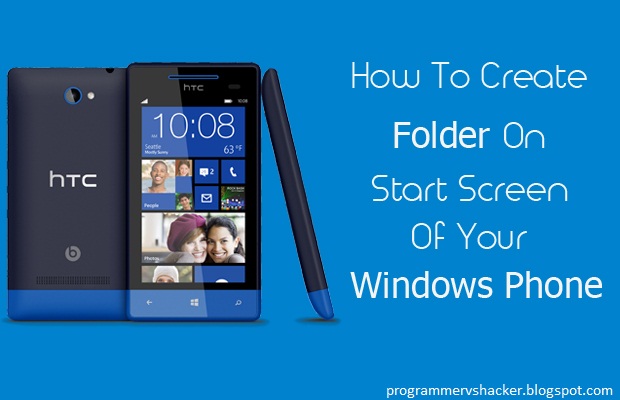
Therefore, today I am going to share an article in which you will learn one of the adding on your Windows Phone that, “How to Create a Folder on Start Screen of your Windows Phone?” Most of the people want to create it, since they want to keep their important documents on the start screen in order to approach them swiftly.
With the help of this article, you can set your Start Screen according to your favorite and important documents in order to approach them easily and keep them in front of your eyes.
We have mentioned each and everything regarding this article. You can go through these steps and get the solution of your query that, “How to create a folder on Start Screen of your Windows Phone?”
Learn-How to Create a Folder on Start Screen
These are the simple steps which you are going to learn and understand about. You will get the solution easily without having much great troubles and confusion.
- First of all you are supposed to press and hold Tile from the Start Screen (Main Screen)
- Afterwards, the tile will pop up, now drag that pop up to you favorite position on the Start Screen, where you want to place your folder.
- Then you have to tap on Name Folder to give a name to your folder, after giving the name to your folder tap on Enter
- To add more folders, you have to follow the same steps mentioned above
- Now, you can tap on your folder to open it and can include your favorite stuffs in it
- Congratulations! You have successfully created a Folder
Conclusion
This was detailed tutorial that,”how to create a folder on Start Screen of Your Windows Phone?” I am sure that after reading this article your all queries must have removed.
However, if you still have any confusions or questions left then don’t hesitate and share your queries with us. We shall try to remove your queries as soon as possible.
Finally, if you have found this guide helpful which has guided you that, “how to create a Folder on Start Screen of Your Windows Phone?” Then do not forget to share this piece of knowledge with your friends. Your shares mean a lot to us.
Available link for download
Friday, December 30, 2016
How to capture Screen on Rivo Rx 75 Lollipop
How to capture Screen on Rivo Rx 75 Lollipop
Keep Hold And POWER Button and VOLUME DOWN Button At Once For 3 Seconds and it Will Capture The Active Screen
Available link for download
Tuesday, October 11, 2016
How to Delete Extra Home Screen on Android Phone
How to Delete Extra Home Screen on Android Phone
How to delete home screen page(s)
on Android Jelly Bean Version
Go to your home screen
Tap and hold the screen until you feel it vibrates.
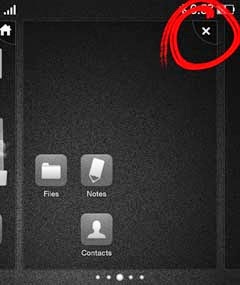
You will then see the screen looks like the image on the left.
Then tap/touch the X button at the upper right corner
How to delete home screen page(s)
on Android Gingerbread Version

On the home screen
tap/touch the MENU
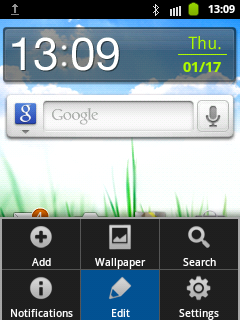
tap/touch Edit
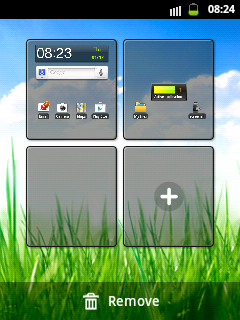
tap/touch and hold the page that you want to delete until it vibrates.
For example I am going to remove the blank page.
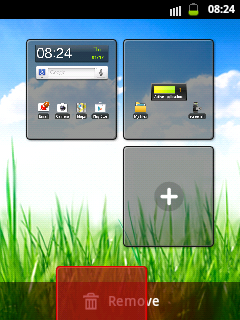
Hold that page down to the Remove area and you will see that this page turns red as it is approaching.
Available link for download
Subscribe to:
Posts (Atom)