Sunday, March 19, 2017
Hack Windows 7 Login Password with Default Windows 7 Administrator Account
Hack Windows 7 Login Password with Default Windows 7 Administrator Account
Restart the computer then follow next steps:
1. Press on the F8 key while you start Windows 7 until your PC displays the boot menu.
2. Select Safe Mode option and press the Enter key
3. Then a login box appears, click on Administrator in the username box and leave the password field as blank, click on OK to login.
4. Now you can open Control Panel, then in User Accounts you can reset any user password easily.
Available link for download

Wednesday, February 22, 2017
How Secure is Your Password
How Secure is Your Password
Many people are unaware of the importance of using strong passwords.The strength of a password depends on the different types of characters that you use, the overall length of the password, and whether the password can be found in a dictionary. Your online accounts,emails, computer files, and personal information are more secure when you use strong passwords to help protect them.
How Secure Is My Password is a site, which tries to calculate how long the hacker needs to try to crack your password.
Features
- Free and simple password strength online checker
- User friendly interface
- Reasonably accurate measure of your password’s strength.

So make sure your users passwords are sufficiently strong in order to prevent malicious attacks.Check here
http://howsecureismypassword.net/
Other Useful Links
- Test the Strength of Your Passwords
- Test Your Password Strength
- Efficient Password Manager1.55
- Password Dragon - Free, Easy and Secure Password Manager
Available link for download
Monday, February 6, 2017
How to Bypass BIOS Password
How to Bypass BIOS Password
Recover from a CMOS memory-affecting virus or work around a boot-time password by making BIOS forget all it once knew.
A PC goes through a process when it is first turned on: the Power-On Self-Test, or P.O.S.T. Some system boards provide security measures that demand a password before beginning the P.O.S.T. process or allowing you into the BIOS setup program.

If, after turning on your PC, you are prompted for a password instead of greeted with a fancy logo screen or the technical gibberish that suggests the system is getting ready to let you use it, then a security feature has been turned on that we call a " pre-boot password." Without the right password to get past this point, the system is basically dead in the water—game over, do not pass go and collect $200—unless or until you reset the BIOS setting. But how do you do that without getting past the password to the setup program?
This hack is also very effective for putting the system board back into "factory stupid" mode where it knows nothing about your system components and forgets all of your parameter tweaks. This is very useful if youve performed a hack that renders the system unbootable or unstable.
The goal is to get the system to forget that it needs a password and forget what the password was. The password data is stored with the rest of the system configuration data in a small amount of memory that is kept alive using a small battery or internal power cell. To clear out the data, you need to remove the power from this memory element. This means the system will also lose any system configuration that was saved. Youll need to later reconfigure the system parameters so you can boot your operating system.
For this and many subsequent hacks, you will be working with electrical components inside your PC. We want you to get through the entire book and enjoy your computer for a long time without risk of electrical shock or component damage. When the cover is off your PC and you are removing or adding components—be they add-in cards, RAM chips, CPUs, or fans—especially when you are handling the screws to hold things in place, ALWAYS turn the PCs power OFF and unplug the power cord from the back of the PC.
Disconnecting the power cord removes the risk of exposure to high voltages and accidentally turning the power to the system board on. Disconnecting the power cord also allows the PC chassis to become ungrounded, which reduces the potential difference between any static charge in your body and the chassis so static shocks are less likely.
It is also recommended that you use an anti-static wrist strap connected to the PCs chassis for further protection of delicate electronic components.
To perform this hack you will need:
A #1 or #2 Phillips-head screwdriver, or (less likely) a T-15 TORX driver or a 1/4" hex nutdriver, to open the case
Needle-nosed pliers if you are working with jumpers
A small flashlight or headlamp
With tools at hand, perform the following steps:
Turn the PC off (this means a total shutdown, not merely standby or hibernate mode) and disconnect the AC power cord.
Remove the cover from your system (this step may require tools, undoing a thumbscrew, or flipping a latch or two).
Refer to the user manual for the motherboard to find out how to "reset CMOS" memory. You may also find a label for specific jumper or switch settings marked on the system board.
Change the switch setting or jumper position to a specific position or remove the jumper entirely as prescribed in the manual to clear or reset the CMOS memory.
Wait 20-30 seconds for the memory to clear out from lack of power.
After 20-30 seconds put the switch or jumper the way it was before for normal use.
Reconnect the power cord and start up the system to see if the settings have changed to defaults.
Shut the PC down, disconnect the power cord, replace the cover, reconnect the power, and power up the PC.
Enter the BIOS setup program to configure the system as needed. This may include setting the date and time, selecting disk drive parameters, and selecting which devices the system uses to boot up with first.
If your system does not have a "reset CMOS" jumper or switch , the only option is to locate and remove the coin-style battery cell (or on some very old PCs, the battery pack), as shown in Figure 1-2, that provides the power to the CMOS memory.
System board with coin-style battery used to retain CMOS memory

Follow Steps 1 and 2 above, locate the battery, and remove it. Leave the battery out of the system for 20-30 seconds, replace it, and start up the system. The CMOS memory in some systems may retain settings longer than others. If the CMOS memory does not clear and youre still stuck, you may need to leave the battery out for several hours before reinstalling it.Once the system is able to perform P.O.S.T. and to start booting up the system, you will need to get into the Setup program for the BIOS and make a few basic adjustments, such as:
Setting the date and time
Selecting auto-detect or manually setting specific parameters for IDE hard drives
Setting the boot-device order—diskette drive, hard drive, CD-ROM, etc.
If you expect to perform more hacks with jumpers, switches, cables, chips, or disk drives, youll probably find it convenient to leave the cover off your PC, but beware: we do not want to cause more trouble than were trying to solve. You could be exposing yourself to dangerous voltages (inside the power supply) or exposing the internal wires and connections to disk drives and plug-in cards to your tools, screws, and other wires that could come in contact with them. At this stage, spilling your favorite beverage or dropping your tools anywhere inside the PC chassis is not advised.
Available link for download
Wednesday, January 4, 2017
How To Hacking And Bypassing Android Password Pattern Face PI
How To Hacking And Bypassing Android Password Pattern Face PI

Credits: This Article Credit goes to XDA Developers http://forum.xda-developers.com
I am just posting this here for you
This Is For Educational Purposes Only
You Shall Not Use This On Other People Phones Without Permission Under Any Circumstances
Im Not Responsible For Any Eventual Errors And Misbehaving Of Your Devices
Files And Tutorials Are Used And Partially Created According My Expirience And Also Collected From Internet & XDA Forums
All Regards Are Going To Their Authors
Requirements:
The Device Needs To Have Usb Debugging Enabled
In Case Usb Debugging Isnt Enabled And You Have Recovery,you Can Run The Same Instructions From Recovery
For Some Methods Root Is Not Required (Though It Will Be Better If Device Is Rooted)
If None Of This Methods Works For You - Unfortunally You Probably Must Full Wipe Your Device
METHOD I
Solution For Everyone With Recovery (Cwm, Twrp, Xrec,Etc...) Installed:
INSTRUCTIONS:
1. Download this zip Pattern Password Disable (Download from attachments) on to your sdcard (using your PC, as you cant get into your phone, right )
2. Insert the sdcard into your phone
3. Reboot into recovery mode
4. Flash the zip
5. Reboot
6. Done!
Note : If You See The Gesture Pattern Grid Or Password After Restarting, Dont Worry. Just Try Any Random Pattern Or Password And it Should Unlock.
METHOD 2
Solution For Everyone Without Recovery Installed - ADB :
What You Need:
=>A computer running a Linux distro or Windows+Cygwin
=>USB cable to connect your phone to the PC
=>Adb installed
How to install adb:
1. Open Terminal
2. Type:
sudo apt-get install android-tools-adb
3. Follow the instructions until everything is installed.
INSTRUCTIONS:
1. Connect you (turned on) Phone to the Computer via USB.
2. Open a terminal window.
3. Type:
adb devices
adb shell
cd data/system
su
rm *.key
Note : If You See The Gesture Pattern Grid Or Password After Restarting, Dont Worry. Just Try Any Random Pattern Or Password And it Should Unlock.
METHOD 3
Solution For Everyone Before Lock Accident :
SMS Bypass - Download Link - Install It On Your Device (Download from attachments)
This App Allows You To Remotely Bypass Your Phones Screen Lock By Sending A SMS.
It Removes Your Gesture Pattern Or Password After Receiving A Preset Keyword Along With A Secret Code Via SMS.
SMS Bypass App Requires Root.
INSTRUCTIONS:
1.First, make sure you give permanent root access to the app.
2.Change the secret code to your preferred choice. The default password is : 1234
3.To reset your screen lock, send the following message from another phone:
secret_code reset
1234 reset
Note 2 : There is an option available to change the preset keyword. Default is : reset - Your phone will restart and your lock screen will be reset.
Note 3 : If You See The Gesture Pattern Grid Or Password After Restarting, Dont Worry. Just Try Any Random Pattern Or Password And it Should Unlock.
METHOD 4
Solution For Everyone Via Adb - SQL Command :
INSTRUCTIONS:
=>Type This Commands Separated In Your Terminal (CMD Prompt) :
adb shell
cd /data/data/com.android.providers.settings/databases
sqlite3 settings.db
update system set value=0 where name=lock_pattern_autolock;
update system set value=0 where name=lockscreen.lockedoutpermanently;
.quit
Note : If You See The Gesture Pattern Grid Or Password After Restarting, Dont Worry. Just Try Any Random Pattern Or Password And it Should Unlock.
METHOD 5
Solution For Everyone Via Adb - File Removal :
INSTRUCTIONS:
=>Type This Command In Your Terminal (CMD Prompt) :
adb shell rm /data/system/gesture.key
METHOD 6
Solution For Everyone With USB Debugging Enabled :
INSTRUCTIONS:
Primary Step for all method:
- Download & Extract to anywhere - Bypass Security Hack (Download from attachments)
- Open SQLite Database Browser 2.0.exe in SQLite Database Browser.
- Run pull settings.db.cmd inside By-pass security Hacks folder to pull out the setting file out of your phone.
- Drag settings.db and drop to SQLite Database Browser 2.0.exe program.
- Navigate to Browse data tab, At table there, click to list down the selection & selete secure
Instruction To Remove Pattern Lock:
- Now, find lock_pattern_autolock, Delete Record
- Close & save database
- Run push settings.db.cmd and reboot your phone
Instruction To Remove PIN Lock:
- Now, Find Or Create lockscreen.password_type, double-click & change its value to 65536, Apply changes!
- Now, find lock_pattern_autolock, Delete Record, If doesnt exist, Ignore
- Close & save database
- Run push settings.db.cmd and reboot your phone
Instruction To Remove Password Lock:
- Now, find lockscreen.password_salt, Delete Record
- Now, find lockscreen.password_type, Delete Record
- Close & save database
- Run push settings.db.cmd and reboot your phone
Note : If You See The Gesture Pattern Grid Or Password After Restarting, Dont Worry. Just Try Any Random Pattern Or Password And it Should Unlock.
METHOD 7
Solution For Everyone With Recovery Installed :
INSTRUCTIONS:
1.Download and Copy Aroma File manager.zip (Download from attachments) to your memory card.
2. Open your recovery (press volume Down + Power button or it can be different according to the phones. Generally the phones who have press able button on the middle they have to press all three buttons. Google for you pattern there are lots)
3. There’ll b an option in recovery called “mount”. Go in that option and then mount all the cache and everything it is there.
4. Then select “update” and select “apply update from SD/external” and select aroma file manger.zip file that you downloaded using above QR code above.
5. After Flashing or updating, the aroma file manger will open. Use volume keys for up/down and power button 2 select like you use to get into recovery.
6. In aroma File manager , Go to menu , which is located in bottom strip and then select Settings.
7. Go to bottom n select “mount all partition in startup ” then exit from aroma file manger.
Available link for download
Sunday, November 6, 2016
How To Open Windows in Password
How To Open Windows in Password
1. turn on your computer and open windows before booting, press F8 at the keyboard.
2. hold you select safe mode then press enter.
3. select adminintrator to log in it.
4. directly into the control panel, user accounts, click the users password ... then lived remove the password ..
please try ....
Available link for download
Saturday, October 15, 2016
How to Password protect Microsoft Office files
How to Password protect Microsoft Office files
 We all use Microsoft Office to create Word documents,PPT presentations or some other..But there are certain documents that you dont want other people to access specially when you are on a shared computer in your company and you may have your certain secret data stored in your word document that should not be accessed by your boss or other employee’s.To deal with such a situation Microsoft office integrated a security feature in Microsoft office so that you can password protect your files.The procedure is quite simple.In this tutorial I will explain you the step by step procedure with screenshots Of How To Password Protect Microsoft Office 2007 Files
STEPS
1 ) Open the Microsoft Office file that you want to password protect and Click on the Microsoft Office Button present on the top left corner of the window.
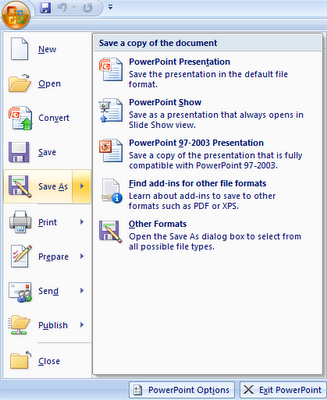
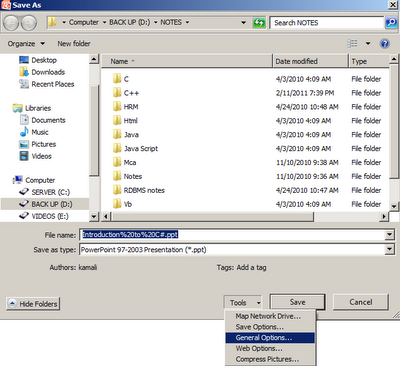
2) Now Click on the Save As option a new window will pop up.Click on Tools option at the bottom of the window. and select general options as shown below
3) Now you will have two options.You can select either one or both options
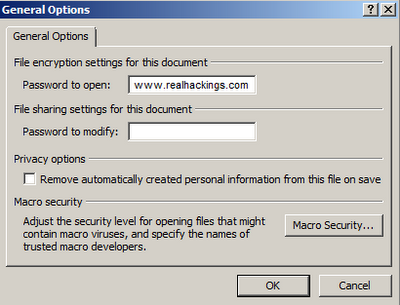
One is Password To Open,it will ask for the password every time the document is opened.So to view the document you have to enter the password first.
Second is Password To Modify,it will ask for the password every time somebody tries to modify the document.
Available link for download
Thursday, October 13, 2016
How not to get Hacked – Choosing the Right Password
How not to get Hacked – Choosing the Right Password
Its a digital nightmare when your password gets hacked. Password compromise = your are fucked, straight away. 
About Bad Passwords
Poor weak passwords have the following characteristics (if you have even one,make sure to change it) -
- Password size less than 15 characters
- Password is a word from dictionary
The password is -
- Name of family,pet,your favorite videogame character.
- Computer terms,commands,website name,hardware,software etc.
- Personal data like birthday,mobile phone numbers, address etc.
- Any of the above spelled backwards! or succeeded or preceded by a number or letter (password1, 1 password)
- In short any form of personal stupidity leads to tragic events :P
How to get hacked ?
- Reveal your password to any one.
- Reveal it in an email message,phone call,to your boss, give hints to others,share it with friends and co workers.
- Write it down somewhere.
- Keep same passwords for all your digital ventures, like emails, voicemails etc
- NEVER CHANGE IT.

In any case, if you want the opposite, follow the opposite :)
Making a STRONG Password
use phrases to form passwords, these are much secure to form and hard to guess.
for eg, the phrase -
“ This is a super secure password and is hard to hack :P ”
will form a password given below by taking the first letter and substituting similar sounding words with numbers. See..its quite hard to hack :)
“ Tiassp&ih2h:P ”
Use numbers, letters, uppercase and lowercase and mix them freely to form you password. make sure its not a dictionary word and DOES NOT CONTAIN any characteristic of weak passwords stated earlier.
A more secure version is to use passphrases to form passwords. A passphrase is a longer version of password and hence its more secure. Make sure its easy to remember,not a famous quotation and hard to guess by intuition
As Clifford Stoll says,
“ Treat your password like your toothbrush. Dont let anybody else use it, and get a new one every six months “
He is damn right..just make sure you change it every month or more often to be secure.
I guess you will now be able to form secure passwords and deploy them fully.
Like This post ? You can buy me a Beer :)
Posted by XERO. ALL RIGHTS RESERVED.
Available link for download