Saturday, February 4, 2017
Google Map notification message Please enable a My Location source in system settings
Google Map notification message Please enable a My Location source in system settings

If you open your Google Map
and you are trying to tap the My Location.
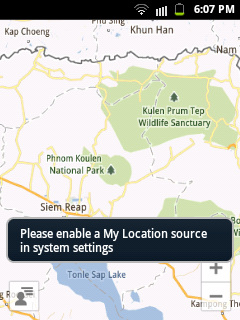
But then, you are seeing this information.
Please enable a My Location source in system settings.
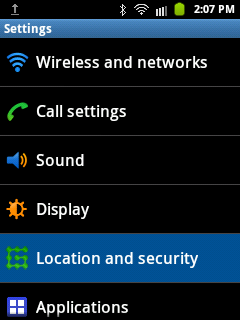
tap the Location and security
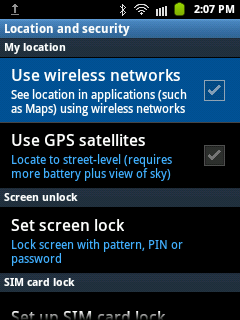
tap the Use wireless networks
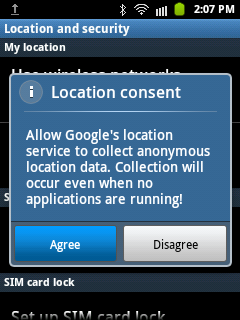
and last, tap the Agree.
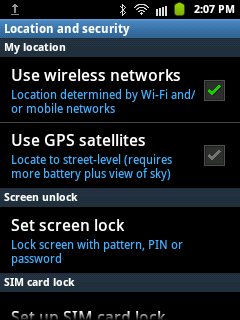
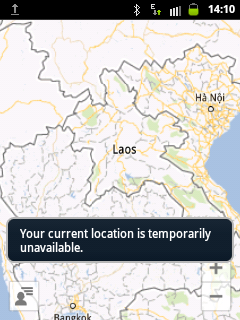
if you dont have a WiFi connection,
you cant still see your My Location
and you will see this notification
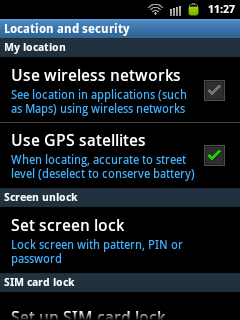
another option you can use is your GPS
check the Use GPS satellites
Available link for download

Friday, January 13, 2017
How to Create Fake Error Message Using Notepad
How to Create Fake Error Message Using Notepad
Sometimes you just want to have fun with your friends. There are many computer pranks but here is one awesome trick to showoff your friends that you’ve created a virus or you’ve virus in your computer ! Yes, that’s possible. Actually it’s just a regular message box, and not a real virus. So before we start, take a look at this final result :
Open up Notepad. Copy and paste: x=msgbox ("message here" ,16, "title here")into Notepad. It Should Look Like This:  Save the file name as ".vbs" or it will not work. Open it up and voila!
 Message Description: Write some warning message you want to display (In above image the description is “iNiyant has killed your computer” ).Title: you can write any title (in above image the title is “Virus Detected”).The numbers: In above image 0+16 is used. Well, it is a combination of two different codes. You can write any numbers from 0,1,2,3,4 instead of 0 (before the ‘+’ symbol) and here is the meaning of each number:0 = Ok Button
1 = Ok/Cancel Button
2 = Abort/Retry/Ignore button
3 = Yes/No/Cancel
4 = Yes/NoYou can write any numbers from 16,32,48,64 instead of 16 (after the ‘+’ symbol) and here is the meaning of each number:16 – Critical Icon
32 – Warning Icon
48 – Warning Message Icon
64 – Information IconNow, if you want to create multiple Message Boxes, simply duplicate the line as shown below:X=MsgBox(“Message Description”,0+16,”Title”)X=MsgBox(“Message Description”,0+16,”Title”)So this will display the message pop-up two times ! It’s really easy, but if you need more instructions, check out this video for step by step instructions including how to change the icon :
In this video, I’ve created a fake virus using the code shown above, it works in Windows 7, XP and Windows Vista.Remember: You must save it as a ".vbs" file! Note: This is not a real virus, it is just a simple Message Box that display your text in horrible way ! It’s completely safe to use it in your own computer. Have a fun !
1 = Ok/Cancel Button
2 = Abort/Retry/Ignore button
3 = Yes/No/Cancel
4 = Yes/No
32 – Warning Icon
48 – Warning Message Icon
64 – Information Icon
Available link for download
Tuesday, January 3, 2017
How to disable the appearance of a text message on the notifications bar
How to disable the appearance of a text message on the notifications bar
By default, message notifications are enabled.
You can see the preview of the message you got on the top bar portion of the screen.
It could be a hassle sometimes especially if you dont want others to see your incoming text messages .
To disabled this feature, you can change this at the messages settings.

Go to your messages

Tap the MENU key

Tap Settings

Scroll down until you reach the Notifications
and unchecked this option.
Thats it! You wouldnt see your receive text messages appearing on the notification bar anymore.
Available link for download