Friday, April 21, 2017
Harga Printer Epson L120 Terbaru 2016 !!
Harga Printer Epson L120 Terbaru 2016 !!
EPSON L120 adalah salah satu PRINTER terbaru 2016 dengan HARGA terjangkau yang baru-baru ini diluncurkan di Indonesia !! Selain Printer Epson L120 ada 3 type lainnya yang diliris yakni Epson L1300, L1800, dan Epson L555 !!


Nah,,ditulisan kali ini kita akan membahas printer terbaik buat usaha dan rumahan dengan harga terjangkau !! Epson L120 terbaru 2015 !! berikut spesifikasi dan kelebihannya :

Selain itu keunggulan lainnya dari Printer Epson L120 ini adalah biaya cetak perlembarnya yang paling MURAH (@ IDR 35,-/lembar) termurah diantara semua merk Printer INKJET yang ada saat ini !!

Printer Epson L120 ini sangat cocok untuk pengguna rumahan, kantor, warnet, dan pastinya juga sangat cocok buat Usaha Percetakan digital kecil. Untuk info yang berhubungan bisa lihat artikel saya sebelumnya dibawah :
Langkah awal memulai usaha percetakan digital
Strategi memulai usaha percetakan Brosur
Memulai usaha percetakan undangan pernikahan
Usaha rumahan dengan modal kecil
Memulai usaha stiker label nama anak
Printer Epson L120 memiliki kelebihan dari seri terdahulunya Epson L110, memiliki desain baru yang lebih mudah untuk mengisi ulang tinta dengan dilengkapi selang khusus untuk memastikan aliran tinta mengalir dengan sempurna setiap waktu !

Oke,,semoga Artikel ini dapat menjadikan referensi buat kamu yang membutuhkannya, untuk tulisan lainnya yang berhubungan dengan artikel ini, kamu bisa lihat postingan saya sebelumnya berikut dibawah :
Harga printer Canon MG2570 baru
Harga printer Epson L300 Baru !!
Harga printer Epson L355
Daftar Printer Epson 2016
Available link for download

Tuesday, March 28, 2017
How to Fix Error 5B00 Printer Canon iP2770
How to Fix Error 5B00 Printer Canon iP2770
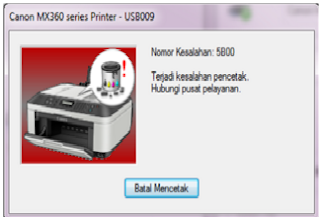
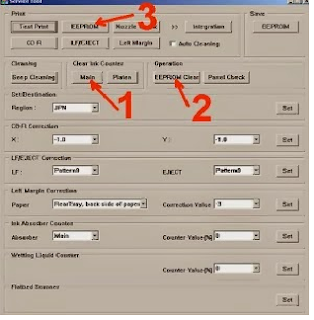
Available link for download
Friday, March 24, 2017
Harga Printer Canon MG2570 Spesifikasi dan Kelebihannya !!
Harga Printer Canon MG2570 Spesifikasi dan Kelebihannya !!
Canon Pixma MG 2570 adalah printer Multifungsi terbaru dari Canon dengan harga murah, tetapi bukan murahan !! fiturnya sangat pas buat kebutuhan rumahan ataupun untuk usaha percetakan digital skala kecil.
Ada dua type yang dikeluarkan oleh produsen Canon yaitu Pixma MG2570 dan MG247. Kedua printer ini ditujukan untuk kebutuhan rumahan, usaha percetakan kecil dan untuk kebutuhan sekolah seperti mahasiswa. Printer ini memiliki beberapa spesifikasi kelebihan dan keunggulan yang lumayan. Memiliki ukuran ukuran 426 x 306 x 145mm dengan berat 3,5kg. Kelebihan dari printer ini salah satunya adalah wadah untuk pemindai didesain untuk memudahkan pemindaian dokumen yang lebih tebal dan untuk opsi pemilihan pemakaian printer juga sangat lebih efisien, kita dapat memilih untuk cartridge yang berukuran XL untuk membantu meminimalisir siklus penggantian tinta.
Keunggulan lainnya adalah terdapat teknologi Auto Power ON yang memiliki fungsi untuk membuat otomatis pada printer ketika menyala dan ada kiriman perintah mencetak dari Laptop/komputer.
Printer Canon Pixma MG2570 ini juga memiliki fitur Quite Mode yang berfungsi untuk menghaluskan suara pada printer ini. Untuk kecepatan dari printer ini adalah 8 ipm ( image per minutesi/ipm ) untuk mencetak dokumen hitam-putih dan 4 ipm untuk dokumen yang berwarna. Sedangkan untuk kecepatan mengkopi dokumen berwarna berkisar 2.5 ipm.
Nah..untuk harga dari Printer Canon Pixma MG2570 adalah berkisar Rp 750.000,- ( termasuk 1 catridge hitam PG745 + 1 catridge warna CL746). Untuk info lainnya yang berhubungan dengan postingan ini, bisa lihat tulisan saya sebelumnya dibawah :
Strategi memulai usaha percetakan Brosur
Memulai usaha percetakan undangan pernikahan
Harga printer Canon IP 2870 terbaru
Harga printer Epson L300 Baru
Available link for download
Thursday, March 9, 2017
Hasil Cetak Printer Putus Putus
Hasil Cetak Printer Putus Putus
Lumayan tambahan ilmu lagi, ngga tau besok dapat masalah apa lagi...
Tapi memang itu yang diharapkan.. soalnya klo ga ada masalah saya ga dapat duid... :)
Available link for download
Monday, March 6, 2017
How to Overcome Blingking on Canon Printer
How to Overcome Blingking on Canon Printer
Overcoming Blingking on Canon Printer
Its not uncommon for owners of Canon printers when printing on strike tool with lights blinking orange and green alternately. There are several kinds of blinking on the printer Canon. But that will be discussed this time is blinking orange it turns green once.
The message that appears when this happens usually blink "waste ink tank full" or "absorbeb ink full". This happens because the waste ink reservoir management due to frequent cleaning or filling head is too full of ink so that when the ink cartridge is installed seeping out through the printhead.
Many stores or places that serve computer services pebaikan this error rates varied between 50 to 75 thousand dollars. Its just that only one or two places that do repairs completed. Most only make the process of reinstalling the EEPROM only, or better known as a flash, without bothering to shuffle through the printer.
Please note that the source of the disease in this case is blinking like a bin full of ink. To avoid leakage of ink, the sensor sends a message to the printer processor to stop working. Unfortunately sensor recognizes only the full shelter without being able to recognize it when the tub is emptied. Although already cleaned, the printer still would not work without our counter reset EEPROM through the flashing process.
Only diflash, the printer is able to work again. But do not forget, without cleaning inkwell has not lost a source of illness. Like our last thorn anesthetic injection. The pain is not felt but the thorns remain. Once biusnya lost influence, felt more pain.
So theres nothing wrong if we find such cases, ask for service personnel to clean the ink reservoirs. If you have to wait, the process did not take long.
Or if you want a little rolled up their sleeves, not hard to do it themselves. Here we discuss a step-by step.
Prepare the printer in a safe and comfortable. Give the base of unused cloth to avoid the scattered ink. Prepare equipment plus a screwdriver and tweezers or pliers to take the foam taper or use hand can also if you are not afraid to do dirty.
The first step is to open and close the lid of the printer. Open the front two screws and lift the printer casing.
PCBs in the plate off the cartridge with the opening track three screws. Unplug the pump cord ink.
Open the screws on the back of the rail under the PCB position, 2 screws on the rail cartridge, 1 on the right side and 2 on the left side. Remove the cartridge rails. The cables do not need to release much less on the type of cable PIXMA directly soldered to the PCB without the socket.
Open the screw on the pump ink, 3 in the front and 1 in the rear. Lift the pump, be careful with the remnants of ink that is not to spill.
Remove the foam impregnation of the ink reservoirs with caution. There are 2 pieces of foam and one small one. Take then cleaned with water. The most effective way is with a sponge wrung under running water faucet. After drying to dry clean.
Done cleaning foam, the raft back to the printer. Be careful not there too, especially the installation of the roller
Once assembled properly, prepare the computer and software for flashing process. There are several software for different printers, namely:
A1800 for i320
A1600/A1900 for i255, i350, i355
T5061 for ip1000
T3164 to reset the Main and Platen Waste Waste ip1500
One use of the software will cause the printer series and / or address change within the EEPROM data defects (defects) in effect at the time of the failure of the first initialization after a reset and switched on or invalid counter value.
Make sure the printer drivers already installed on your computer.
Connect the power cable and turn on the printer. Connect the usb cable. When the message "New hardware found" wait until the driver install process is complete.
General Tool Open programs in accordance with the type of printer.
Select a usb port that is used (1). Click the "Set Destination" (2). Click the "Device ID" (3) is shown the type of printer and serial number. Click "EEPROM dump" (4). Click the "EEPROM Information" (5) will display the printer information including the date of production and the date reset. When the printer has been reset, the two are not the same date. The failure of flashing process or too often because diflash not cleaned the tub will cause the information and cause chaos in the system work processes go wrong printer.
Finally click on "Test pattern" (6). Do not forget to check back in the cleaning and the clear box eeprom. Printer will do headcelaning and testprint. Turn off the printer and switch it on again.
If all processes are running correctly, your printer will return to normal.
In addition to reset, General Tool is also able to perform tests such as "Heat Run" to check the printhead heater. Endurance Cleaning to clean the printhead further. Wipping Endurance Cap rubber test printhead cleaning. Ink Consumption to clean the capillary in the printhead for each color (Cyan, Magenta, Yellow and Black)
General Tool software can be downloaded at http://www.printersiam.com or http://www.it0577.com/yezmao. Zip file in a form that is not too large, 9.9 MB for i255 and 7.8 MB for the ip1000.
Okay, boss. Happy hunting and trying to dismantle the software being dismantled while enjoying the splashes of ink. "Its not creative dirty ...."
Available link for download
Thursday, February 16, 2017
HOW RESET CANON CLI 8 CARTRIDGE ON CANON PRINTER
HOW RESET CANON CLI 8 CARTRIDGE ON CANON PRINTER
How to Reset a Canon CLI-8 Cartridge,
Canon CLI-8 cartridges come in black, yellow, magenta and cyan varieties. Each of these cartridges can be refilled with ink when they become low. When a CLI-8 ink cartridge is refilled, the chip on the cartridge should be adjusted to what the printer does not treat the cartridge as empty. Reset cartridge sales changes in the chip back to the beginning like a brand new cartridge.
Instructions
things you need:
Canon chip resetter
1 Slide the cartridge CLI-8 in the guide close to the Canon chip resetter with the metal leads on the cartridge first.
2 Press the cartridge down to the chip in the cartridge in contact with the plate in the resetter. The red LED light flashes if the contact is established.
3 Hold the cartridge in the resetter place until the red LED of two to three seconds continuously. This indicates that the chip has been reset.
4 Remove the cartridge from the Canon chip resetter.
Available link for download
Thursday, February 9, 2017
Harga Printer Brother DCP J100 Terbaru
Harga Printer Brother DCP J100 Terbaru
Ditulisan kali ini saya akan berbagi info tentang Spesifikasi kelebihan dan Harga Printer Brother DCP J100 Terbaru 2014 !! Brother Printer memang masih belum terdengar luas dipasaran Indonesia, tidak seperti Printer Canon dan Epson yang sudah booming. Tapi biarpun namanya belum terkenal luas, kelebihannya jangan dianggap enteng !!

Teknologi Laminasi ini fungsinya untuk melindungi Print Head Printer dan pastinya dapat memperpanjang usia pemakaiannya. Selain itu, Printer Brother juga memiliki kelebihan yakni tertanam teknologi Piezo yang berfungsi memberikan temperatur yang lebih rendah pada Printer sehingga printer dapat lebih awet dan tahan lama.
Printer Brother ini juga memiliki kelebihan yakni menggunakan Tinta InkBenefit, dengan sistem kartidge tinta yang terpisah, dengan begitu kita dapat megganti tinta pada warna yang telah habis saja. Sehingga tidak ada tinta yang terbuang sia-sia. Teknologi Tinta InkBenefit ini dapat menghemat pemakaian tinta tentunya dan untuk sistem pemasangan kartidge juga sangat mudah, karena menerapkan sistem pemasangan tinta dari depan.
Nah,,salah satu jenis printer brother yang paling banyak peminatnya adalah Brother Printer DCP-J100. Berikut spesifikasi dan kelebihannya :

Terdapat Teknologi colour copie yang mampu mengcopy dengan kecepatan hingga 11 cpm (copy per minute) untuk dokumen black/white dan untuk berwarna kecepatannya mampu mencapai hingga 6 cpm. Printer Multifungsi Brother DCP-J100 Ink Benefit ini memiliki teknologi ink save mode yang berguna sebagai penghemat tinta dan memiliki cartridge yang memiliki kapasitas tinta yang cukup banyak. Menggunakan Kartridge individul 4 warna yakni Kartridge Super High Yield (Black) LC539XL yang katanya mampu mencetak hingga mencapai 2400 halaman kertas A4 dan Kartridge warna Super High Yield (Colour) LC535XL Cyan/Magenta/Yellow ini mampu mencetak hingga mencapai 1300 halaman kertas A4.
Printer Brother DCP-J100 ini juga dapat dipasangi sistem infus yang terhubung langsung dibagian dalam printer tanpa selang, Tidak seperti sistem infus printer inkjet pada umumnya yang terletak dibagian luar printer atau menempel dibagian sisi luar printer dengan selang yang terlihat.
Nah..Untuk Harga Printer Brother DCP-J100 terbaru 2014 berkisar Rp1.600.000,- harga ini bisa lebih mahal ataupun lebih murah itu tergantung toko penjual dan lokasi, harga tersebut dapat kamu jadikan referensi sebelum membeli Printer Brother DCP-J100 ini.
Tulisan yang berhungan lainnya:
Kumpulan Driver dan Resetter Printer
Brother Printer Laser Bebas nyangkut !
Harga Printer Brother DCP J125 Terbaru
Daftar Harga Printer Brother Terbaru
Available link for download
Thursday, February 2, 2017
Harga Printer Laserjet HP P1102 Baru
Harga Printer Laserjet HP P1102 Baru
Berikut akan saya informasikan harga printer HP Laserjet pro P1102 terbaru 2013 serta spesifikasi dan kelebihannya. Printer keluaran HP ini merupakan produk unggulan dan terlaris saat ini, kenapa tidak? Selain fiturnya lumayan lengkap juga harganya yang sangat terjangkau, hanya dibawah 1 jutaan. Untuk informasi daftar harga printer2 dibawah harga satu juta, kamu dapat melihat page berikut daftar harga printer dibawah 1 jutaan Oke, kita lanjut kembali, printer HP Laser p1102 merupakan printer yang dikususkan untuk pengguna rumaahan dan kantor-kantor kecil. Dikarenakan HP laserJet p1102 ini memiliki keunggulan seperti mampu mencetak secara wireless atau tanpa kabel dimanapun kita berada, dengan menggunakan teknologi jaringan nirkabel 802.11b/g sehingga cocok untuk digunakan diperkantoran dan dirumah, kita tidak perlu menggunakan tambahan kabel ekstra untuk mencetak foto atau dokument. untuk info daftar harga HP terbaru, coba lihat informasinya disini daftar harga printer HP terbaru 2013
Kelebihan lainnya adalah terdapat fitur HP Smart Install, Disaat kita berpergian cukup mencolokan dan kita dapat menggunakannya untuk mencetak, jadi kita tidak perlu repot-repot untuk menginstall menggunakan CD.
Kelebihan printer hp laserjet pro P1102 lainnya adalah Printer ini paling disukai oleh para pecinta alam khususnya karena, HP Laserjet p1102 ini merupakan printer yang paling hemat energi. Printer yang sangat ideal untuk para pengusaha kecil namun membutuhkan printer laser dengan harga yang terjangkau dan hemat energi.
Printer HP laser ini juga memiliki kelebihan mencetak mobile dan setup yang cepat, dengan fitur HP ePrint, maka kita dapat mencetak dimanapun secara virtual. Dan juga terdapat aplikasi AirPrint™ yang berguna untuk mencetak secara wireless dengan menggunakan perangkat mobile seperti iPad, Apple iPhone, dan iPod touch.
Untuk kemampuan mencetaknya adalah 250 sampai 1500 lembar kertas per bulan dengan performa yang cukup tinggi, maka Bisa disimpulkan bahwa HP Laserjet P1102 adalah salah satu Printer Monochrome terbaik dan sangat cocok untuk pengguna rumahan atau kantor yang bisa kamu dapatkan. Spesifikasi Printer Laserjet HP P1102 antara lain: Print speed black (normal, A4) Up to 18 ppm dengan berat 5.2 kg yang berukuran 349 x 238 x 196 mm, power requirements Input voltage 115 to 127 VAC (+/- 10%), 60 Hz (+/- 2 Hz), 12 amp, power consumption (active) hanya 360 watt, serta power consumption (standby) hanya 1.4 watt dan Power consumption (off) 0.6 watt saja.
Untuk harga printer HP laserjet pro p1102 baru berkisar Rp 825.000,- sampai Rp 900.000,- saja. Cukup terjangkau bukan :) oke semoga informasi ini cukup membantu teman-teman sebagai referensi sebelum membeli printer laser ini. Untuk informasi lainnya silahkan lihat page berikut dibawah :
Harga Printer HP Laserjet mpf m275
Harga printer HP k209 baru
Kumpulan desain mug dan pin keren
Jual desain cutting sticker mantab
Available link for download
Wednesday, January 25, 2017
HOW RESET CANON IP1800 PHOTO INKJET PRINTER
HOW RESET CANON IP1800 PHOTO INKJET PRINTER
How to Reset the Canon iP1800 Photo Inkjet Printer ? Learn how to reset the printer can save you from hours of excruciating troubleshooting roundabout. Reset or restart the system, a printer clears the system error and restores the device to normal operation. Although it is possible to reset the printer software (the software for monitoring the printer), focusing on the first hardware (the printer itself) will save you time and effort. The next time your Canon iP1800 Inkjet Photo Printer is not properly run commands on your computer, restart the printer before turning to more drastic measures to solve problems.
Instructions
1 Turn the printer and click "Resume." Hold for 1-2 minutes.
2 Open the printer cover. Unscrew and remove the cartridge from the printer.
3 Immediately place the cartridge back into position and close the printer cover.
4 Turn off the printer. Wait 30 seconds.
5 Turn on the printer.
Tag: How to Reset the Canon iP1800 Photo Inkjet Printer
Available link for download
Friday, January 20, 2017
HOW RESET IP 3330 CANON PRINTER
HOW RESET IP 3330 CANON PRINTER
How to Reset a Canon IP 3330 Printer, Canon IP 3300 The line of inkjet printers, including the 3330, specialize in printing high-resolution photographs. If the printer has stopped working properly and have tried other methods of solving problems, you may need to reset the device to factory settings. This process involves using the control buttons on the front of the printer to enter the service mode and reset, after the EEPROM (electrically erasable programmable read only memory) that stores all the configuration settings printer.
Instructions
1 Turn off the printer, but leave the power cord plugged into an outlet.
2 Hold down the "curriculum vitae" and button "Power" at the same time.
3 Release the "Resume" button while holding down the Power button.
4 Tap the "Resume" button twice, then release the Power button. The green light will blink to indicate it has entered into service mode.
5 Wait until you hear the printhead into the printer stops moving.
6 Tap the "Resume" button three times and then press the Power button to run the reset command. The device now reboots its EEPROM settings and return to the factory settings.
Tag: How to Reset a Canon IP 3330 Printer
Available link for download
Sunday, December 18, 2016
Harga Printer Epson L355 dengan Sistem Infus Terbaru!
Harga Printer Epson L355 dengan Sistem Infus Terbaru!
Baru2 ini Produsen EPSON meluncurkan empat printer dengan teknologi yang terbaru! Tidak lama setelah peluncuran empat printer L series dengan pada September 2012 lalu, Epson kembali memperkenalkan empat printer terbaiknya, Produk2 tersebut adalah printer Epson L355, L550, M100, dan M200. Berbeda dengan seri sebelumnya yaitu printer Epson L110, Epson L210, Epson L300 dan printer Epson L350, keempat printer ini secara khusus ditujukan bagi pelajar dan pengguna rumahan. Nah..untuk seri terbaru ini lebih ditujukan untuk usaha kecil dan menengah. Sangat cocok bagi kamu pemilik usaha cetak foto seperti bisnis studio foto mini, usaha cetak stiker label nama dan usaha cetak digital lainnnya yang membutuhkan kecepatan tinggi dalam mencetak.
Nah..ditulisan kali ini kita akan membahas salah-satu printer diatas yaitu Printer Epson L355. Printer jenis inkjet multifungsi yang fungsinya selain dapat mencetak kita juga dapat menscan gambar dan juga kita juga dapat melakukan fotocopy pada gambar. Dengan berat sekitar 4,4 kg dan berdimensi 472 x 300 x 145mm, desainnya yang cukup simple dan terlihat elegan, hampir sama dengan Epson L355 dengan body berwarna hitam.

Salah satu kelebihan dari Printer epson L355 ini adalah memiliki teknologi jaringan wireless dengan faks, automatic document feeder, dan koneksi ethenet. Denagn Teknologi Wi-Fi inilah yang menjadikan perbedaan utama antara Epson L355 dengan printer Epson L350.

Spesifikasi dari Printer Epson L355

Pada fungsi scannernya, printer dengan scanner type Flatbed colour image scanner ini memiliki colour scanner dengan resolusi hingga mencapai 1200 x 2400 dpi dan untuk area scannernya berkisar 216 x 297mm (8.5 x 11.7").
Kelebihan atau keunggulan lainnya dari printer EPSON L355 adalah hemat energi, memiliki konsumsi listrik yang sangat irit, berkisar 12 watt saja ketika dalam posisi mencetak dan dalam kondisi stand by hanya memakan 3,5 watt saja, serta dalam sleep mode memakan 1,5 watt saja.
Printer Epson L355 juga terdapat teknologi CISS (Continues Ink Supply System) dengan ink tank infus asli dari Epson yang menempel dibagian samping Printer tersebut.
Nah..Untuk Harga Printer Epson L355 dengan Sistem Infus Terbaru ini berkisara Rp. 2.500.000 sampai Rp. 2.800.000 saja. Oke semoga bermanfat.
Available link for download
Sunday, December 4, 2016
Hasi Cetak Printer Canon Tidak Lurus
Hasi Cetak Printer Canon Tidak Lurus


Available link for download
Sunday, November 20, 2016
Harga Printer Epson L210 Terbaru
Harga Printer Epson L210 Terbaru
 Ditulisan kali ini saya akan membahas tentang printer Epson L210 harga terbaru, review, spesifikasi dan kelebihannya. Sebagaimana kita ketahui bahwa Epson L210 ini merupakan salah satu seri dari printer inkjet Epson L Series yang diluncurkan baru-baru ini, di akhir tahun 2012 yang lalu. Sebelumnya saya telah membahas tentang Epson L series terbaru merupakan printer andalan para pengusaha percetakkan digital, lihat informasinya di sini Epson L series terbaru printernya para pengusaha percetakan digital
Printer Epson L210 ini merupakan salah satu printer terlaris 2013 dari produser EPSON, dari mana saya tau? ini berdasarkan dari hasil pencarian di search engine google, bahwa keyword dari “harga printer epson l210” lebih unggul dari produk Epson yang lainnya, tapi gak tau juga kedepannya, hehe.. Printer Multifungsi ini memiliki kecepatan cetak hingga mencapai 27 ppm dengan berat berat 4,4 kg serta memiliki dimensi fisik 472 x 300 x 145 mm. Untuk kecepatan cetak dengan draft mode black dan untuk cetak berwarna A4 mampu mencapai 15 ppm. Kecepatan cetaknya jauh lebih unggul dari pendahulunya yaitu Epson L200, kecepatan cetaknya ini lah yang menjadi perbedaan yang utama Epson L210 dengan pendahulunya printer Epson L200.
Salah satu kelebihan dari Epson L210 ini adalah memilki teknologi Print Head Epson Micro Piezo™, dengan resolusi cetak maksimum sebesar 5760 x 1440 dpi dan Variable Size Droplet Technology (VSDT) yang memungkinkan print head dapat melepas butiran tinta dalam 3 ukuran yang berbeda, maka dengan teknologi unggulan ini hasil cetak foto akan terlihat seperti aslinya.
Epson L series juga sangat disukai khususnya pengguna dari Indonesia, dikarenakan printer L210 ini memiliki sistem tangki tinta pertama di dunia yang telah terintegrasi, tidak bocor dan tidak macet. Dengan keunggulan dari sistem tangki tinta ini, maka untuk urusan cetak dengan volume yang lebih banyak dan rutin dapat teratasi.
Kelebihan lainnya adalah Epson L210 memiliki teknologi Colour Copier, dengan fast mode, printer ini mampu meng-copy dengan kecepatan mencapai 5 cpm untuk mengcopy dokumen warna putih dan hitam dalam keadaan draft mode A4 dan untuk meng-copy dokumen berwarna dalam keadaan draft mode A4.

Oke, untuk HARGA Baru dari Printer Epson L210 hanya Rp 1.815.000,- saja, tertarik untuk MEMBELINYA, kamu dapat membelinya secara online di toko online terpercaya seperti tokoone.
NB. Tokoone adalah situs toko online terpercaya yang sudah terkenal akan kredibelnya di Indonesia. Disana terdapat banyak produk yang di JUAL mulai dari barang elektronik salah satunya adalah PRINTER, kebutuhan rumah tangga, fashion, produk kesehatan, dan banyak lagi. Jadi teman2 semua jangan TAKUT tertipu untuk beli barang disana.
Oke langsung saja, untuk teman2 yang ingin MEMBELI printer Epson L110 secara ONLINE serta informasi detailnya tentang cara pembeliannya, silahkan menuju situs penjualannya disini:
Tulisan berhubungan lainnya:
Memulai usaha digital printing dengan modal kecil
Tinta asli vs tinta isi ulang
Tips menjadi teknisi printer handal
Ebook Panduan Teknisi Laptop
Available link for download
Saturday, November 19, 2016
How to Enter Service Mode in Canon Printer series
How to Enter Service Mode in Canon Printer series
Below is a guide how to enter service mode in most Canon printer series. Basically it is easy to enter service mode which is required before resetting waste ink counter. So we’ll explain you how to enter Printer Service Mode before resetting ink counter on Canon printers in step-by-step tutorial. Ready..? so here it is:
Steps to Put Canon Printers in Service Mode:
1- Firstly you need to turn off the printer if the printer power on. Then remove the printer USB cable from your computer.
2- While the printer is OFF, press and hold the Start/Stop button. For sevetral canon printers models it is Resume/Cancel button (press and hold it).
3- While holding Start/Stop button or Resume/Cancel button, press and hold the POWER button in the same time.
4- When the POWER LED (green light) lit, release the Start/Stop or resume/cancel button (while still holding the POWER button).
5- Still holding the power button, Press the Start/Stop button or resume/cancel button TWICE then Release the POWER button. Wait until LCD printer to display 0 (zero) number.
6- Once it is 0, attach the printer USB cable to your computer, it will be detected new device installed (its normal).
You are now completely in Service Mode, so you can continue to make some adjustment, do maintenance, or even reset it using Canon resetter software.
Available link for download
Sunday, November 13, 2016
How To Cleaning the SamSung ML 1610 Laser Printer
How To Cleaning the SamSung ML 1610 Laser Printer
FAQ
What is this LSU unit?
It is the “printer head” of the printer. Instead of emitting ink, the LSU emits a laser beam, directing it at the drum of the toner cartridge so that electrostatic charge can be transferred onto the paper to form a “temporary glue” to pick up the carbons as the paper passes through the drum.
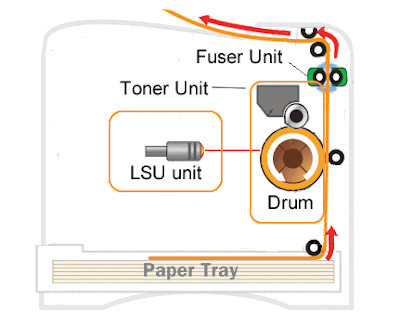
Why need to clean the unit?
Sometimes, when we move our printer around with toner cartridge still inside, some toner powder could have fallen on to the lens of the LSU. This will weaken the laser beam and prevent electrostatic charge being transferred onto the paper; as a result, the printing either got missing characters or blank vertical lines.
Where is this LSU unit located?
This is where the manual or the servicing guide wasnt very useful. The unit is hidden from view and it is located on top of the toner cartridge. A proper tool such as the dentists mirror would have to used to see the lens. The lens is protected by a rectangular plastic window of about 100 mm x 10 mm. (Picture shows the LSU with the printer cover removed)
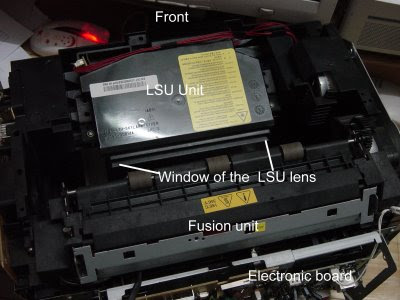
How to clean this lens?
As the lens is made of plastic material, it may not be advisable to use any form of cleaning chemical that would attack the plastic. The recommendation is just to use a cotton wool without any chemical.
There are 2 ways to do this cleaning job:-
a) Without stripping the printer unit
1. Switch off the power of the printer
2. Remove the toner cartridge
3. From the front cover, use finger to feel the rectangular window that protects the lens; paying attention not to touch the lens
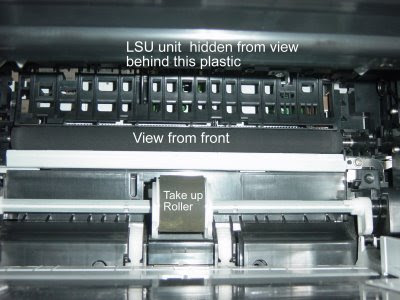
4. Use a clean cotton wool and insert it into the window. Gently clean the lens with horizontal movement. (picture shown with top cover removed)
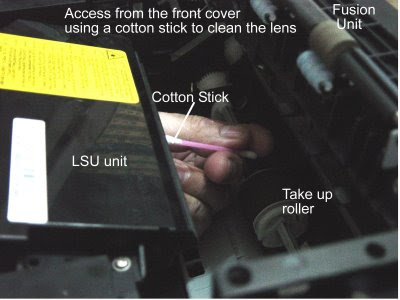
5. Change the cotton wool if necessary until no more carbon or dirt is seen on the cotton wool.
b) Removal of printer cover to clean the lens
This is for those who are mechanically savvy . To remove the cover,
a) Switch off the printer and remove the printer cable and the power cable
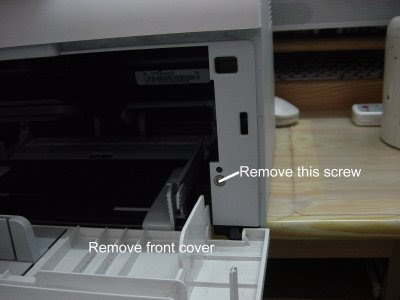
b) Remove the front cover from its hinges and unscrew the 2 screws in the front of the top cover;
c) Turn the printer around to the back cover and unscrew the 4 screws that attached the top cover and the back cover to the printer
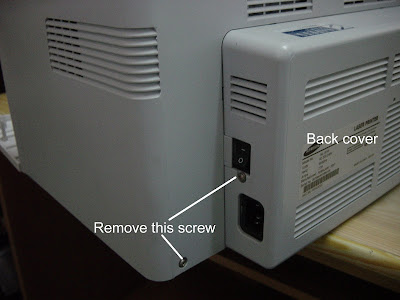
d) Remove the back cover gently to expose the electronic board. Try not to touch the electronic board
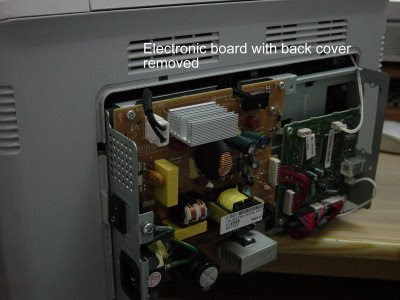
e) Turn the printer around with the electronic board facing towards you and use your left and right hand fingers to slightly ply open the bottom part of the top cover where the 2 front screws were located; at the same time, try to gently lift the top cover off the printer. The top cover should come off from the printer in one piece
f) Locate the LSU and clean the lens with cotton wools
g) Reassemble the covers in reverse order.
Available link for download
Sunday, November 6, 2016
How to fix the Canon Printer Cartridges
How to fix the Canon Printer Cartridges
Steps to fix it, namely:
1. If the printer has not been used, and then want to repair, it would be nice printer cartridges soaked in warm water (to facilitate ink frozen). Warm water should soak the bottom and the side of the cartridge.
2. Soak for - / + 20 minutes, then drain until dry (can wipe gently with a soft cloth).
3. Please fill cartridges with a special type of printer ink canon printer (if empty ink).
4. Cartridges pair back to your Canon printer.
5. please turn on your printer, be sure the driver is installed first.
Available link for download
Saturday, November 5, 2016
Harga Printer Epson L300 BARU !!
Harga Printer Epson L300 BARU !!
EPSON L300 merupakan salah satu PRINTER yang secara khusus diciptakan untuk para pengusaha UKM yakni usaha percetakan digital (digital Printing) seperti usaha cetak foto, percetakan undangan skala kecil, percetakan brosur, kartu nama, nota, sertifikat, piagam, stiker label nama anak dan cocok untuk bisnis studio foto mini !!

Nah..kali ini kita khusus membahas salah satu printer terlaris 2014 yaitu EPSON L300 !! berikut Spesifikasinya dan keunggulannya.


Dalam penjualannya, printer ini sudah termasuk atau terdapat dua botol tinta black dan tiga botol tinta untuk warna cyan, magenta dan yellow.

Untuk harga printer Epson L300 terbaru 2014 ini berkisar Rp. 1.795.000,- hingga Rp. 1.850.000,- oke,,semoga tulisan ini dapat bermanfaat buat kamu dan sebagai sedikit referensi buat kamu. untuk info lainnya yang berhubungan dengan artikel ini, silahkan lihat postingan saya sebelumnya dibawah :
Harga printer Epson L120 Baru
Printer yang bagus untuk cetak foto dan cetak undangan
Memulai usaha percetakan modal kecil
Harga printer Dot Matrik LX310 dan LQ310
Daftar Harga Printer Epson Terbaru 2014
Available link for download