Thursday, March 23, 2017
How to flash official firmware Nokia brand mobile phones
How to flash official firmware Nokia brand mobile phones
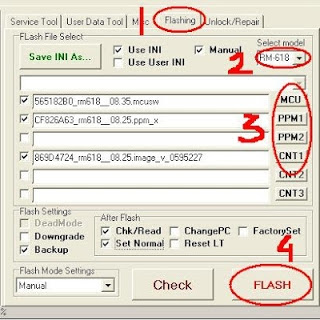
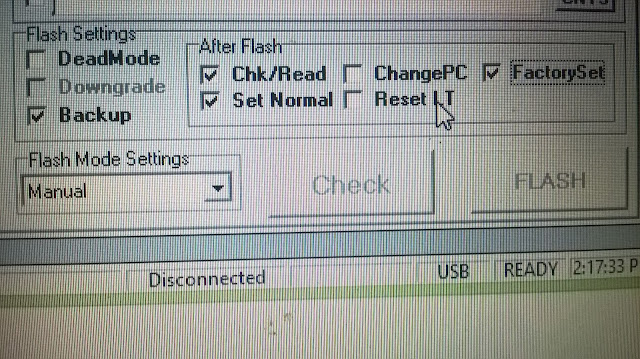
In this tutorial i will show you easy method step by
step how to flash any Nokia phones and you realize how it is easy way for flash Nokia official firmware of your phone.

 |
| RUN AS ADMINISTRATOR |
 |
Available link for download

Saturday, March 11, 2017
Google to Launch Three Nexus Phones this Year
Google to Launch Three Nexus Phones this Year
 |
| Nexus One from 2010 |
- SO-01E: · Xi · NEXT · NFC-based Xperia (TypeA / B / C)
- SO-02E: · FOMA · With · NFC Xperia series waterproof (TypeA / B / C) ·
- SO-03E: Xperia Tablet · Xi · Tablet
- SO-04E : Xperia NEXUS -Xi-NEXT-NFC (TypeA / B / C) SO-05E: Xperia Walk · FOMA · With · NFC waterproof function (TypeA / B / C) · Walkman
- L-01E: Optimus LTE II · Xi · NEXT · NFC (TypeA / B / C)
- L-02E: Optimus Bright II · FOMA · NEXT · NFC (TypeA / B / C)
- L-03E: mobile router
- L-04E: i-mode Mobile · STYLE
- L-05E: Optimus Tab II · Xi · Tablet
- Waterproof Optimus it II · Xi · With · Capless:
- L-06E
- L-07E: Optimus? Waterproof and FOMA · With · Capless
- L-08E: Optimus NEXUS -NFC waterproof · Xi · NEXT · Capless (TypeA / B / C)
Samsung:
- SC-01E: GALAXY SIIIplus · Xi · NEXT · NFC (TypeA / B) + Felica
- SC-02E: GALAXY NEXUS II -Xi-NEXT-NFC (TypeA / B / C)
- SC-03E: GALAXY TAB II · Xi · Tablet
- SC-04E: OMNIA · Windows Phone · Xi · NEXT
Available link for download
Tuesday, February 14, 2017
How to Format Reset your Symbian S60V3 S60v2 and S60V5 phones
How to Format Reset your Symbian S60V3 S60v2 and S60V5 phones

You can soft reset your device with the code *#7780# + security code (12345 if you didn’t change it) so that your device will be back to factory settings. Your personal data will not be erased.
You can hard reset your device with the code *#7370# + security code (12345 if you didn’t change it) so that your device will be as the first day-all data are deleted because the phone is formatted!
• If your phone is seriously crashed and won’t boot, you can perform the same hard reset this way:
Make sure your battery is fully charged
Backup your personal data to your computer or an MMC storage card.
Switch off your nokia 3250.
Press and hold 3 keys: green dial key, * star key, no. 3 key on keypad and then press the power on/off to switch on the nokia 3250. Remember, do not let go the 3. Press and hold keys until you see the formatting screen. After a few minutes when the process is over , your nokia 3250 will be back to the original delivered system
Available link for download
Sunday, February 12, 2017
Hike Messenger for Java Phones JAR File Free Download
Hike Messenger for Java Phones JAR File Free Download
Hike Messenger is all brand-new Instant messaging app just like Whatsapp and Facebook messenger that has actually gotten big appeal because its release time with over countless hike signed up users worldwide. Exactly what Hike messenger presented in the social networking was the totally free talktime offers or benefits for each brand-new signup and brand-new recommendations that brought in countless users and it was actually a wonderful idea from the Hike Developers which assisted a lot to increase Hike Messenger downloads in such a competitive app market.
Available link for download
Thursday, October 13, 2016
How to Install CyanogenMod ROM on Non rooted Android Phones
How to Install CyanogenMod ROM on Non rooted Android Phones
The installation of custom Roms on android phones is quite a difficult task and also a lenghty process. Remember that when installing a custom Rom, your device needs to be rooted before proceeding to other stages of installation, but when it comes to cyanogen Roms, your android phone dont need to be rooted and you wont be needing to unlock the bootloader of your android device.
How to Install CyanogenMod ROM on Non-rooted Android Phones
Step 1: Firstly, Download Cyanogen ROM Installer for android, here, and also download Cyanogenmod ROM installer app for PC. Here is the list of tested and supported device that the cyanogenmod Installer works on.
Step 2: After downloading, Enable the Usb debugging on your android device.

Step 3: Then run the downloaded android app on your android phone, and follow the onscreen tuitions carefully, then connect your smartphone to your PC through the use of USB cable, then run the Cyanogenmod ROM installer app for PC on your desktop.
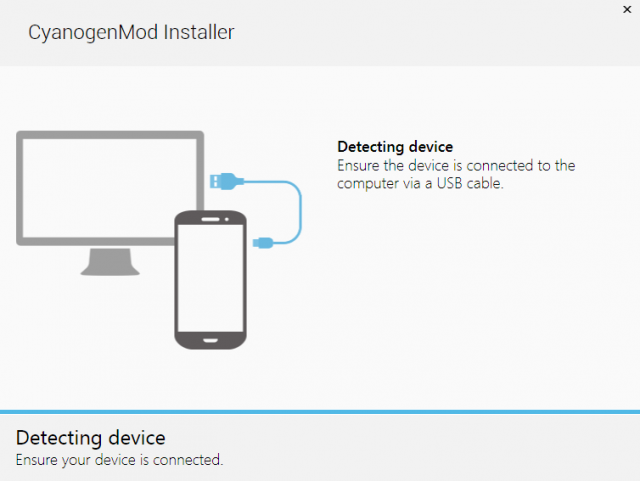
Step 4: Once the above step is proceeded, the installer would detect your device and would start to download the CyanogenMod ROM with some other recovery files on your android phone, then you would recieve a message on the installer app alerting that, Everything is ready, then youre good to proceed the final stage
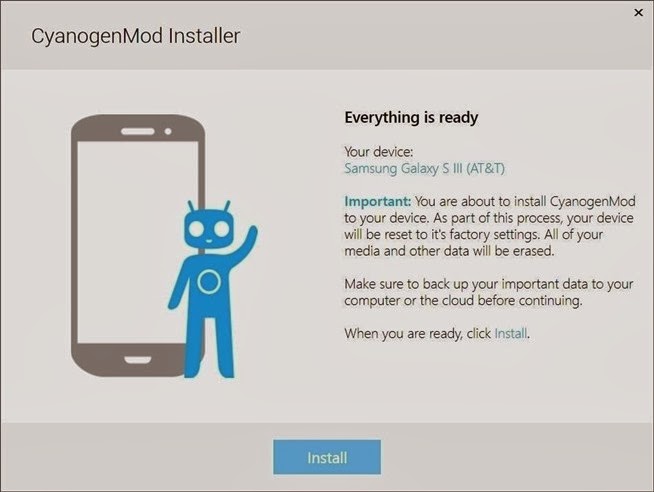
Step 5: At this final stage, you would notice an install button which youre to click, once youve clicked it, then a flashing process would startup and this would cause your device to turn ON and OFF.
Note: Do not disconnect your device from your PC durning this process, because it can cause a brick to your android smartphone.
Once the flashing process is completed, you would be notified an alert on the windows installer app, which is, "Installation completed"
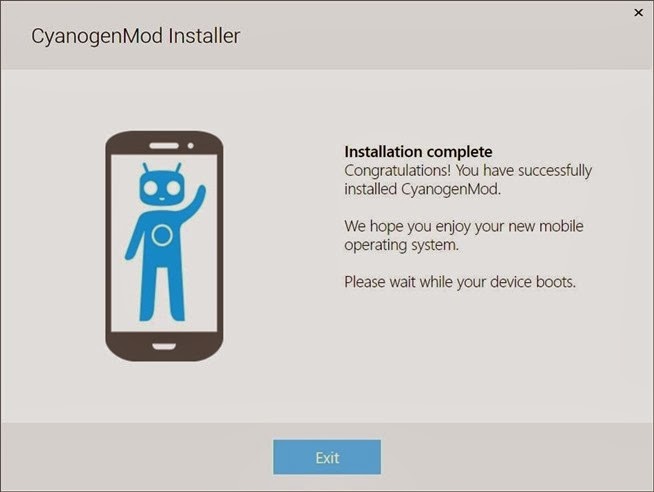
Congratulations, now you can freely enjoy the cyanogenmod ROM on your android phone or tablet.
Available link for download